
You can change your Business subscription at any time from your account. Depending on the type of change, it will take effect either right away or at the start of your next billing cycle.
In this article, we’ll show you how to upgrade or downgrade your subscription.
Before you start
Here are a few helpful things to know before you start:
- An upgrade is a change to a higher plan or limit, such as more monthly actions or more domains for Cookie Information Consent Management Platform (CI CMP).
- A downgrade is a change to a lower plan or limit, such as fewer monthly actions or fewer CMP domains.
- The platform decides whether a change is an upgrade or downgrade based on the new subscription price.
- You can request a downgrade at any time, but it takes effect at the start of your next billing cycle. Your next charge will reflect the new plan.
- Once you upgrade or downgrade, you’ll get a confirmation email.
- If you switch from yearly billing to monthly billing, the change takes effect at the end of your current billing period. Before you confirm the new plan, we’ll show you the change date and the new price.
Note for Enterprise customers: If you want to downgrade your Enterprise plan, you need to contact our account manager.
How to upgrade your subscription
Upgrade your subscription when you need higher limits right away.
When you upgrade, your new charge is calculated automatically. It is based on the difference between your current plan and your new plan, prorated for the rest of your current billing period.
Note: If your change includes a CMP license upgrade, it may take 1–2 days to complete because of processing time.
Upgrade your subscription
To increase the number of domains, actions, or both, follow these steps:
1. Log in to your Piwik PRO account.
2. Click Upgrade in the top-right corner, or navigate to Menu >Administration > Account > Subscription.
3. Review your billing cycle.
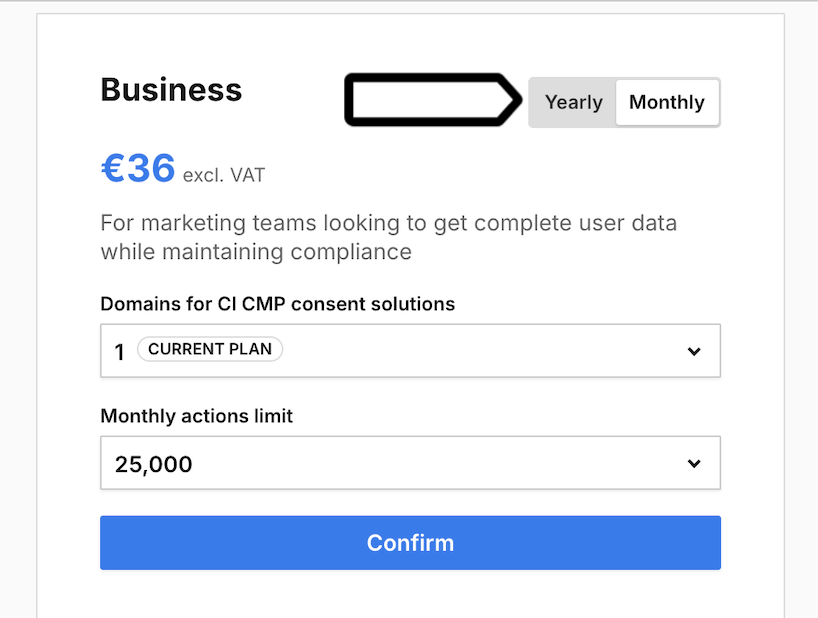
Note: You can check when your next payment is in Menu >Administration > Account > Subscription.

4. In Domains for CI CMP consent solutions, change the number of domains. Your current limit is labeled Current plan.
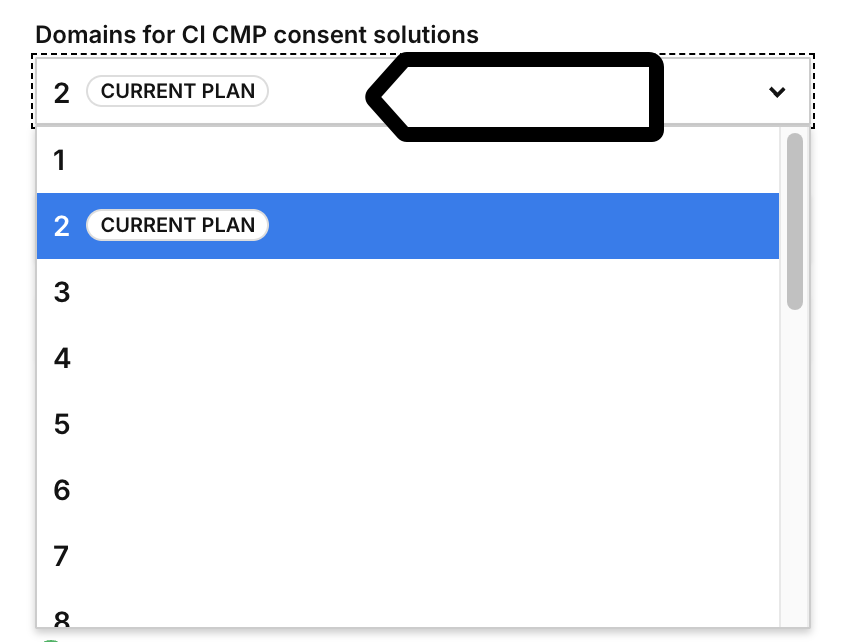
5. In Monthly actions limit, change the number of actions you want to track. Your current limit is labeled Current plan.
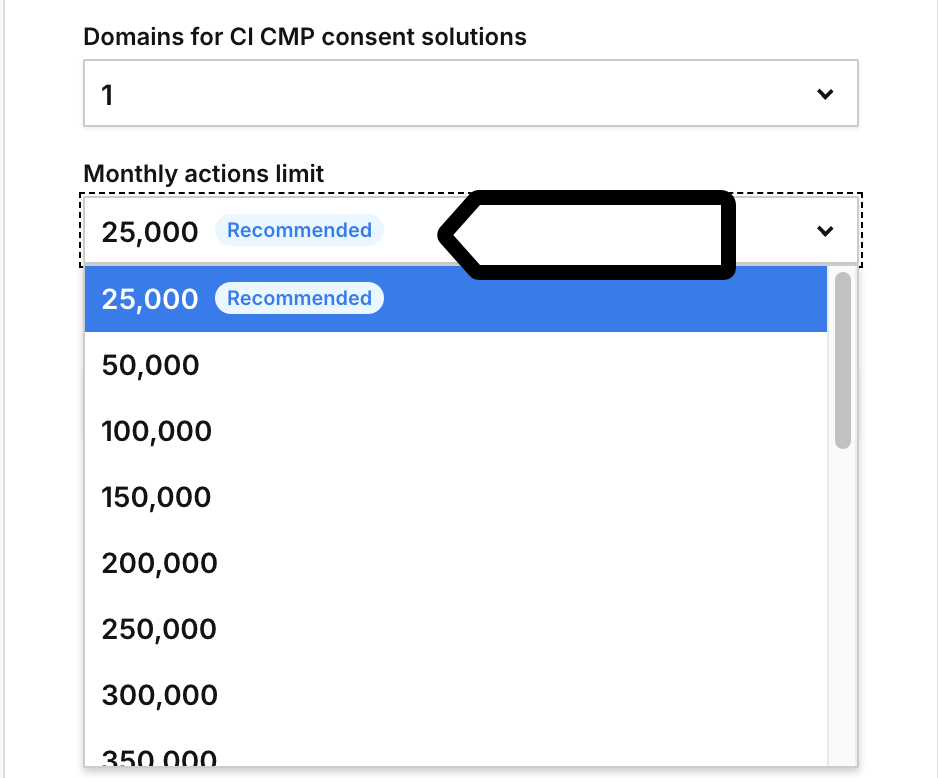
6. Click Confirm.
Note: You don’t need to confirm anything else. The changes apply immediately.
7. Review the confirmation window. Click Confirm again.
8. All set.
How to downgrade your subscription
Downgrade your subscription when you no longer need your current limits.
When you downgrade:
- the change is scheduled and doesn’t take effect right away
- your current limits stay the same until your renewal date
- the new plan or lower limit take effect in your next billing cycle
- your renewal reflects the lower price
Downgrade your subscription
Note: You can request a downgrade at any time, but it will take effect at the start of your next billing cycle. Your next charge will reflect the new plan.
To decrease the number of domains, actions, or both, follow these steps:
1. Log in to Piwik PRO.
2. Click Upgrade in the top-right corner, or navigate to Menu >Administration > Account > Subscription.
3. In Domains for CI CMP consent solutions, change the number of domains. Your current limit is labeled Current plan.
4. In Monthly actions limit, change the number of actions you want to track. Your current limit is labeled Current plan.
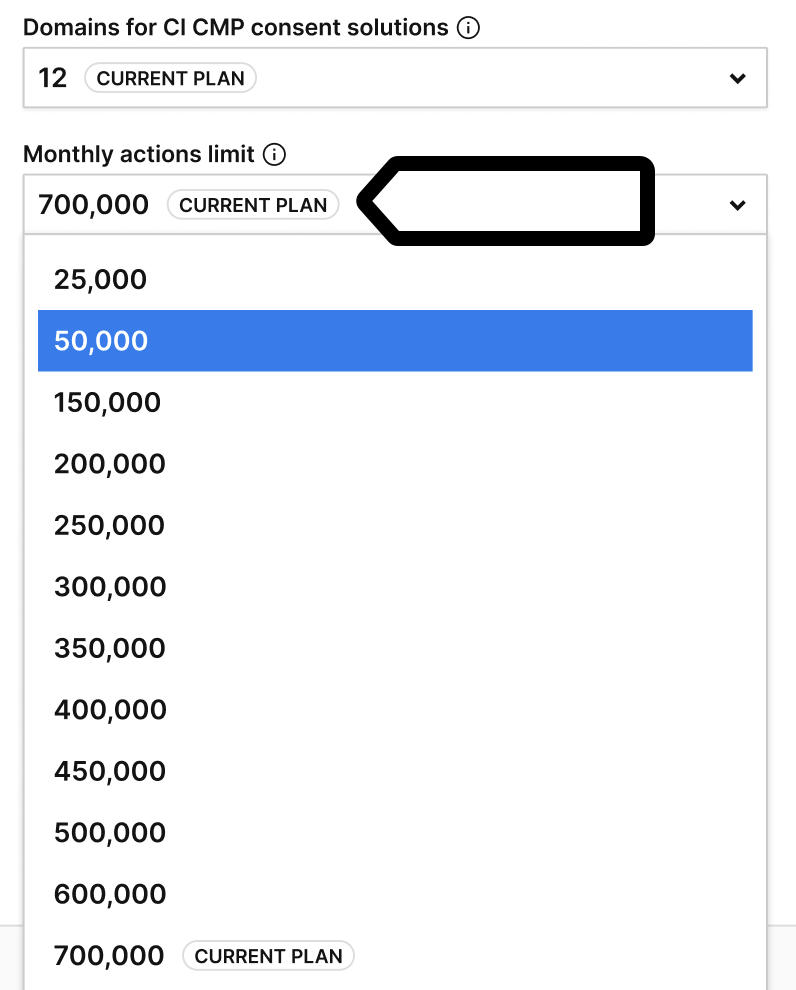
8. Click Confirm.
9. Review the confirmation window. Click Confirm again.
10. Done.