
From a user’s profile, you can view and change their owner access, module access, group memberships, and permissions for sites, apps, meta sites, and meta apps. You can also check which permissions are assigned directly and which are inherited from groups.
In this article, we’ll show you how to manage these permissions.
How permissions work
A user can have permissions assigned directly or inherit them from one or more groups.
For sites, apps, meta sites and meta apps, you’ll see:
- User permission: The permission assigned directly to the user.
- Highest group permission: The highest permission the user inherits from their groups.
- Overall permission: The highest permission the user has, whether assigned directly or inherited from a group.
For example, if a user has View permission directly and Manage permission through a group, their Overall permission is Manage.
Note: Changing User permission may not change Overall permission if the user inherits a higher permission from a group.
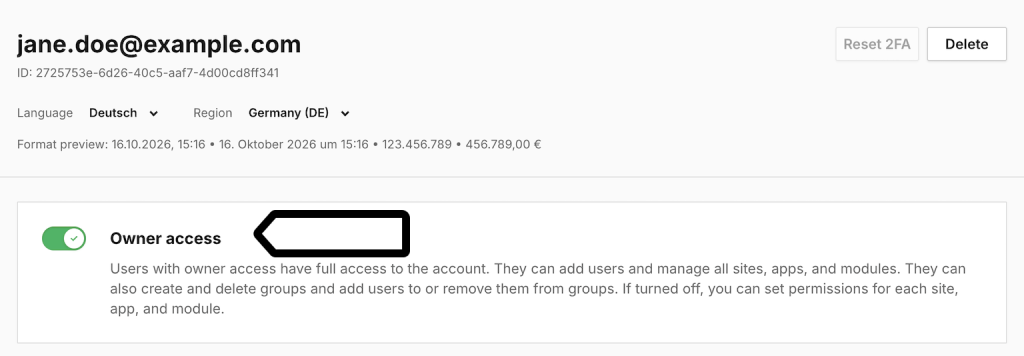
When Owner access is turned off, the user’s access is determined by their module, group, site, app, meta site, and meta app permissions.
Turn owner access on or off
To change owner access, follow these steps:
1. Go to Menu > Administration > Users.
2. Open the user’s profile.

3. Turn Owner access on or off.
4. Done.
Note: Owners have full access to the account. When Owner access is on, separate permission settings aren’t shown. When you turn it off, the user’s existing permissions and group memberships apply.
Change module access
To manage a user’s module access, follow these steps:
1. Go to Menu > Administration > Users.
2. Open the user’s profile.
3. Go to Modules.
4. Turn access to individual modules on or off.

Note: Turning off access to the Administration module hides it from the user interface but doesn’t necessarily prevent access through the API.
5. To give or remove access to all modules at once, select Give access to all modules or Remove access to all modules.

6. Done.
Note: Owners have access to all modules.
Add a user to or remove them from a group
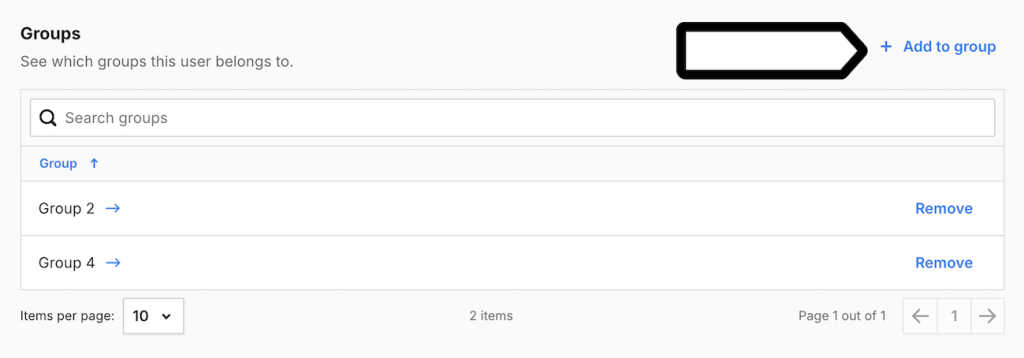
Groups let you manage permissions for several users at once. When you add a user to a group, they inherit that group’s permissions.
Add a user to a group
To add a user to a group, follow these steps:
1. Go to Menu > Administration > Users.
2. Open the user’s profile.
3. Go to Groups.
4. Select Add to group.
5. Find and select the groups you want to add the user to.
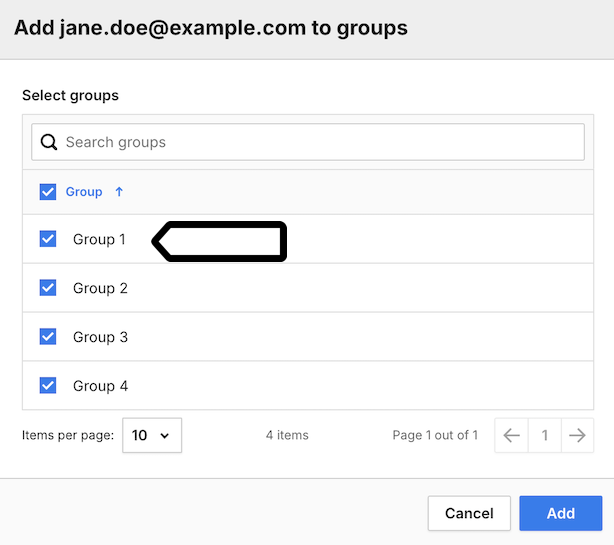
6. Select Add.
7. Done.
Remove a user from a group
To remove a user from a group, follow these steps:
1. Go to Menu > Administration > Users.
2. Open the user’s profile.
3. Go to Groups.
4. Find the group you want to remove the user from.
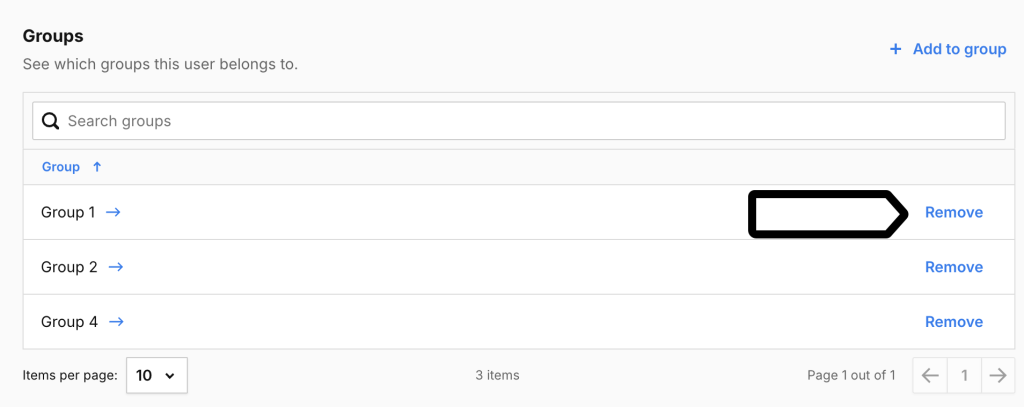
5. Select Remove next to the group name.
6. Done.
Note: Removing a user from a group also removes the permissions they inherited from that group. They keep permissions assigned directly or inherited from other groups.
To create a group or change its permissions, see Add a group.
Check or change permissions for sites, apps, meta sites and meta apps
To review or change a user’s permissions, follow these steps:
1. Go to Menu > Administration > Users.
2. Open the user’s profile.
3. Go to Sites & apps.
4. Find the site, or app you want to work with.
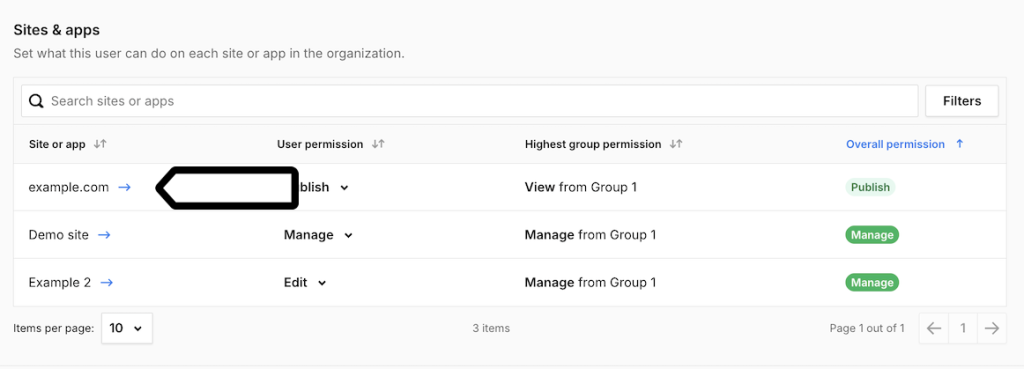
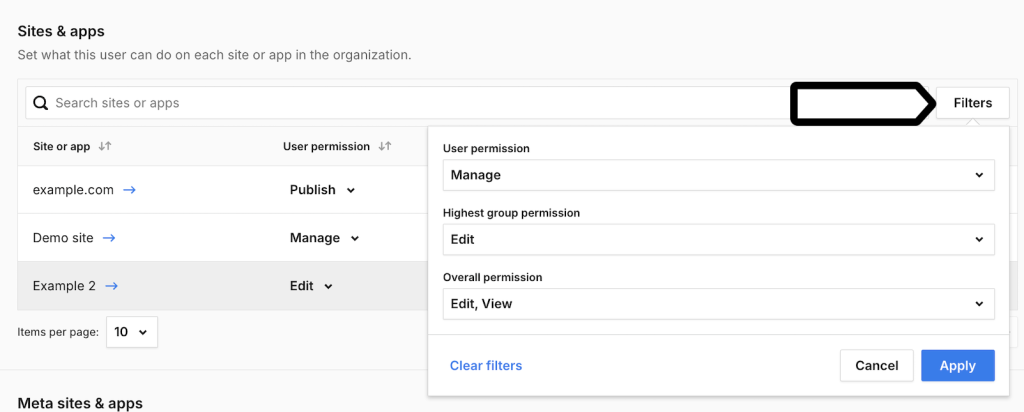
Tip: To narrow the list, select Filters and filter by User permission, Highest group permission, or Overall permission. Select Apply to show the results or Clear filters to remove the filters.
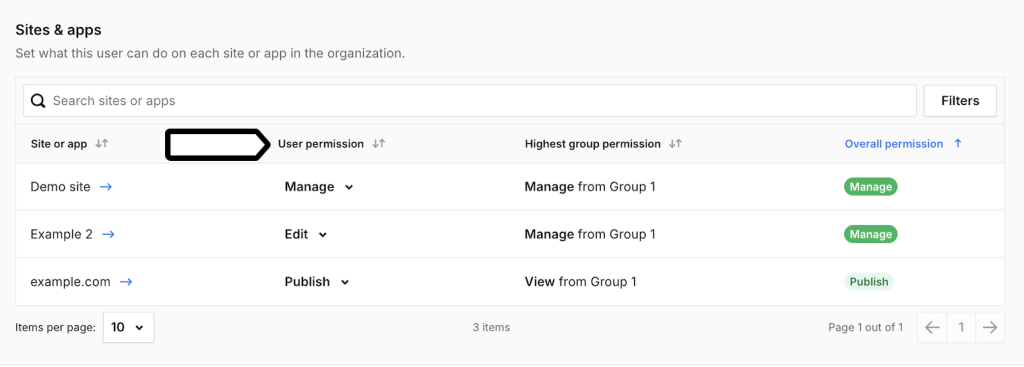
5. Check the user’s direct, inherited, and overall permissions in the corresponding columns.
6. To change the permission assigned directly to the user, select a new level under User permission.
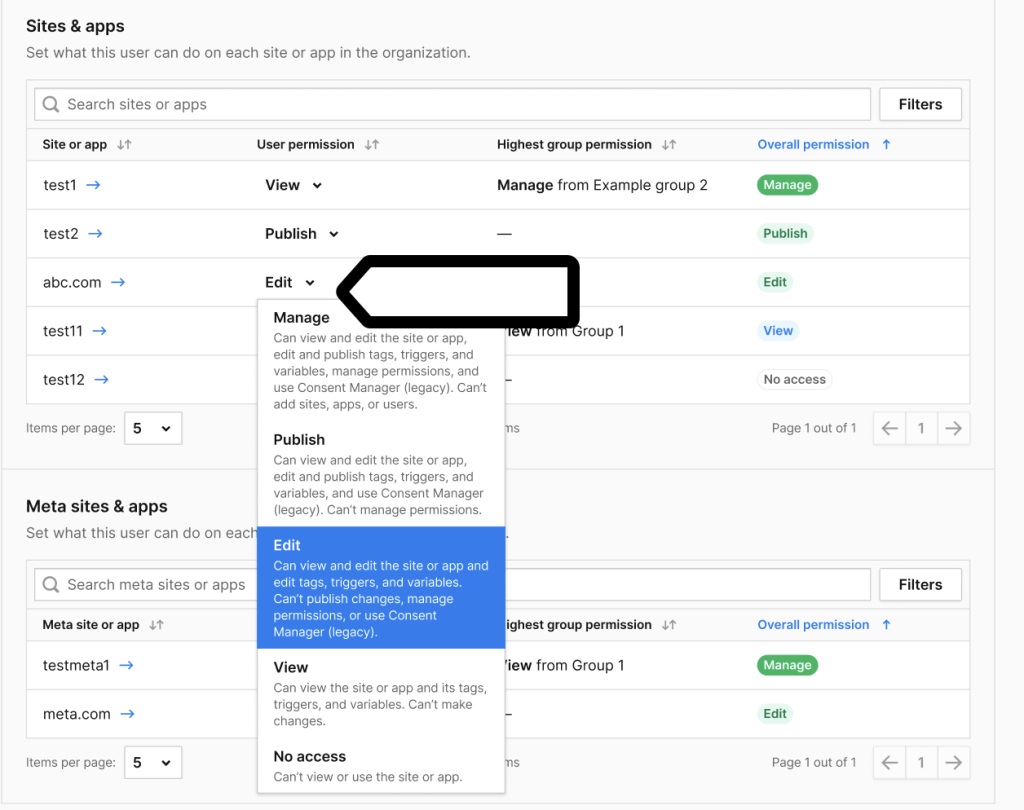
Note: If the user inherits a higher permission from a group, changing User permission won’t lower their Overall permission. To lower it, change the permission for the relevant group or remove the user from that group.
7. To review or change permissions for meta sites and meta apps, go to Meta sites & apps and follow the same steps.
8. Done.
To see what each permission level lets a user do, see Compare permission levels.