
If you ask an organization that uses Piwik PRO to access or delete your personal data, it may ask you to provide your visitor ID. The organization can use this ID to find data associated with you in Piwik PRO.
Your visitor ID is stored in the _pk_id cookie in the browser you used to visit the organization’s website. Each browser, browser profile, and device may have a different visitor ID. If you used more than one of them, you may need to provide the visitor ID from each one.
In some cases, the organization may also be able to identify your data using other information, such as your email address, but only if its data collection setup sends this information to Piwik PRO.
If you can’t find the _pk_id cookie, it may never have been set or it may have expired. This means the visitor ID is no longer stored in your browser.
You may need your visitor ID when working with our support team or when identifying data linked to a specific browser.
You can find the visitor ID in the _pk_id cookie stored in that browser.
In this article you’ll see how to find your visitor ID in your browser.
Google Chrome
To find your visitor ID in Google Chrome, follow these steps:
1. Open the website where Piwik PRO collected your data.
2. Open developer tools:
- Press F12 on your keyboard, or
- Right-click the page and select Inspect
3. Go to Application.
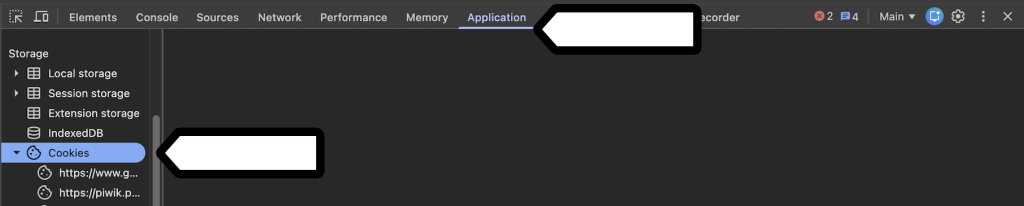
4. In the left menu, open Cookies.
5. Select the website’s domain.
6. Find the _pk_id cookie.

7. In Value, copy everything before the first dot. For example, if the value is: 8f9f3agg4as.17720feaaw,
copy: 8f9f3agg4as
8. Send this value to the organization handling your request.
Firefox
To find your visitor ID in Firefox, follow these steps:
1. Open the website where Piwik PRO collected your data.
2. Open developer tools:
- Press F12 on your keyboard, or
- Right-click the page and select Inspect.
3. Go to Storage.
4. In the left menu, open Cookies.
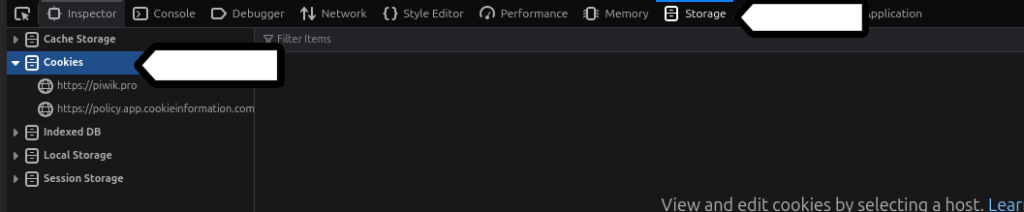
5. Select the website’s domain.
6. Find the _pk_id cookie.
7. In Value, copy everything before the first dot. For example, if the value is: 8f9f3agg4as.17720feaaw,
copy: 8f9f3agg4as
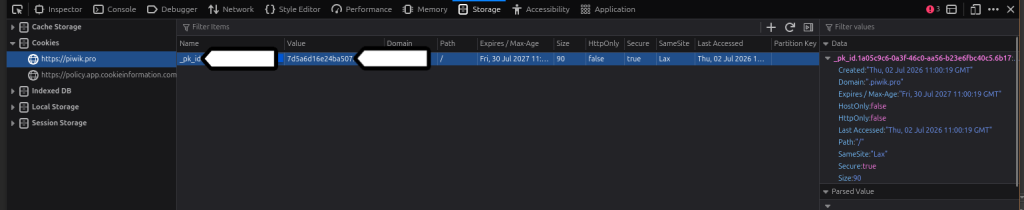
8. Send this value to the organization handling your request.
Microsoft Edge
To find your visitor ID in Microsoft Edge, follow these steps:
1. Open the website where Piwik PRO collected your data.
2. Open developer tools:
- Press F12 on your keyboard, or
- Right-click the page and select Inspect.
3. Go to Application.
4. In the left menu, open Cookies.
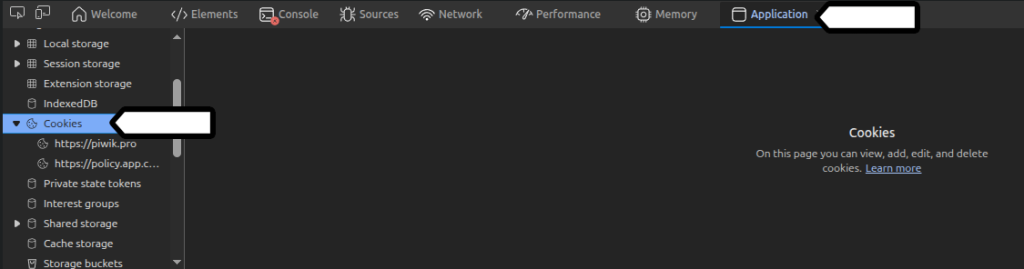
5. Select the website’s domain.
6. Find the _pk_id cookie.
7. In Value, copy everything before the first dot. For example, if the value is: 8f9f3agg4as.17720feaaw,
copy: 8f9f3agg4as

8. Send this value to the organization handling your request.
Safari
To find your visitor ID in Safari, follow these steps:
1. Open the website where Piwik PRO collected your data.
2. Right-click the page and select Inspect Element.
3. Go to Storage.
4. In the left menu, select Cookies.

5. Select the website’s domain.
6. Find the _pk_id cookie.
7. In Value, copy everything before the first dot. For example, if the value is: 8f9f3agg4as.17720feaaw,
copy: 8f9f3agg4as

8. Send this value to the organization handling your request.
Opera
To find your visitor ID in Opera, follow these steps:
1. Open the website where Piwik PRO collected your data.
2. Open developer tools:
- Press Ctrl + Shift + C on your keyboard, or
- Right-click the page and select Inspect element.
3. Go to Application.
4. In the left menu, open Cookies.

5. Select the website’s domain.
6. Find the _pk_id cookie.
7. In Value, copy everything before the first dot. For example, if the value is: 8f9f3agg4as.17720feaaw,
copy: 8f9f3agg4as

8. Send this value to the organization handling your request.