
The overview page in Tag Manager helps you spot issues in unpublished changes to your tag setup, without scrolling through long lists of tags, triggers, or variables.
In this article, we’ll show you how to use the overview.
Before you start
Here are a few things to know before you start:
- The overview is structured around:
- Summary cards showing the number of tags, triggers, and variables in a given site or app, or metasite or app.
- Setup checks listing detected issues and how many items are affected.
- A detailed view of the affected items, which you can review one by one.
Use the overview
To use the overview, follow these steps:
1. Go to Menu > Tag Manager.
2. Select your site or app in the picker (top right).
3. Go to Overview.

4. First, you get the summary of how many tags, triggers, and variables you have in the setup.

5. Scroll down to Setup checks.
6. Click the arrow icon next toone of the items on the list, for example, Variables used by unrecognized variables.
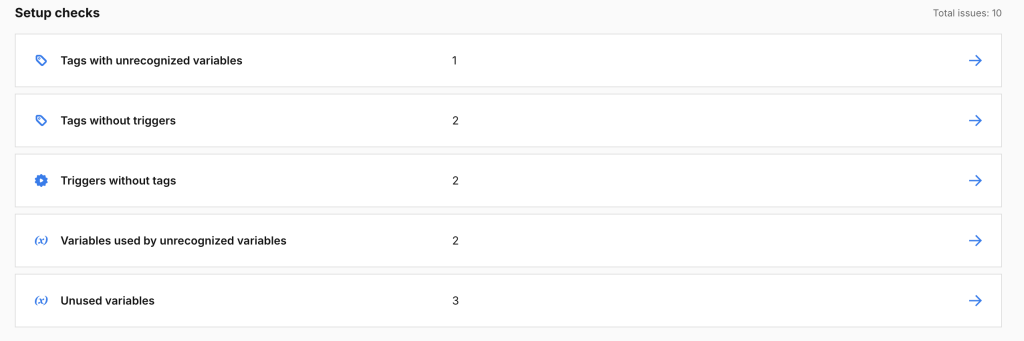
Note: Variables used by unrecognized variables means that this variable depends on one or more variables that haven’t been created yet, aren’t defined, or were copied from another site or app.
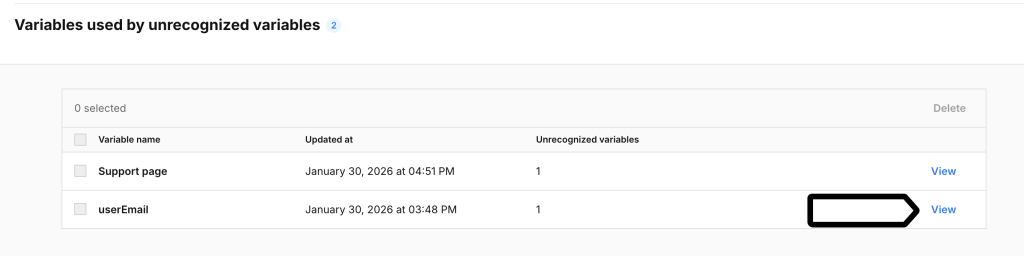
7. Click View next to the variable’s name. This will direct you to the variable’s details in Variables.
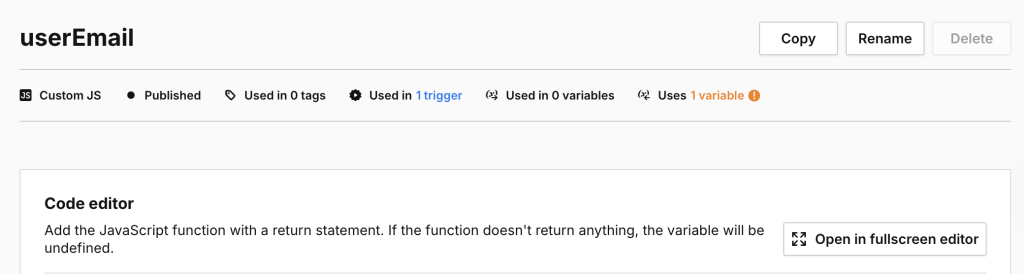
8. In the variable’s view (for example, userEmail), you’ll see all the details of this variable.
9. Done.