
Once on a trial, you can subscribe to a Business or Enterprise plan to get more features, higher limits, and billing options that fit you. During checkout, you can also add your company details, VAT number, and discount code if you have one.
In this article, we’ll show you how to subscribe to the Business plan.
Before you start
Here are a few things to know before you start:
- Your trial account stays active for 30 days. If you don’t subscribe after the trial, your account and data are permanently deleted.
- All users can buy, upgrade, or downgrade a plan. Still, only users with access to Administration and with owner permissions can update card details or cancel the subscription through Piwik PRO.
- Business subscriptions are billed in advance for the upcoming monthly or yearly period, depending on the plan you choose.
- If you pay by credit card, the payment is charged right away. You can’t pay using one-time payment cards.
- With a Business plan, you can manage payments in your account. For example, you can cancel your subscription and download invoices. To change your credit card, you need to go to Paddle, our payment provider.
- Customers in the EU are charged VAT unless they qualify for the reverse charge with a valid VAT number.
- Invoices are sent to the billing email address entered during checkout. You’ll be able to access them also from your account.
- As part of the upgrade, you select Domains for CI CMP consent solutions. A domain in Cookie Information Consent Management Platform is the root domain of the website where you want to display the consent popup, such as example.com. It doesn’t include subdomains like www. or blog., or specific pages.
The number of root domains you add affects your pricing.
Subscribe to a Business plan
To subscribe to a Business plan, follow these steps:
1. Log in to Piwik PRO.
2. Click Upgrade in the top-right corner, or go to Menu > Administration > Account > Subscription.

3. Choose your billing cycle, such as yearly or monthly.
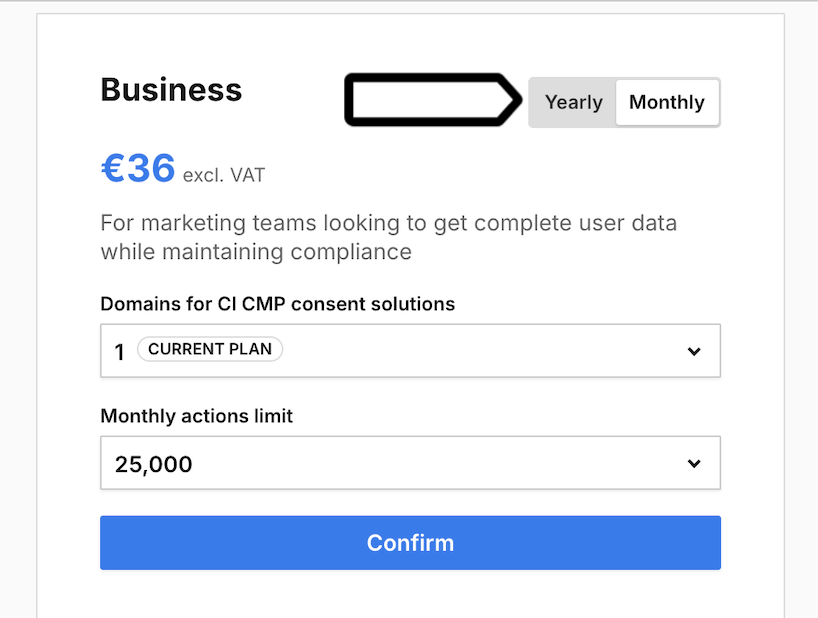
Note: Customers in the EU are charged VAT unless they qualify for the reverse charge with a valid VAT number.
4. In Domains for CI CMP consent solutions, choose the number of domains.
Note: You need to choose at least one domain.
5. In Monthly actions limit, choose the number of actions you want to track.
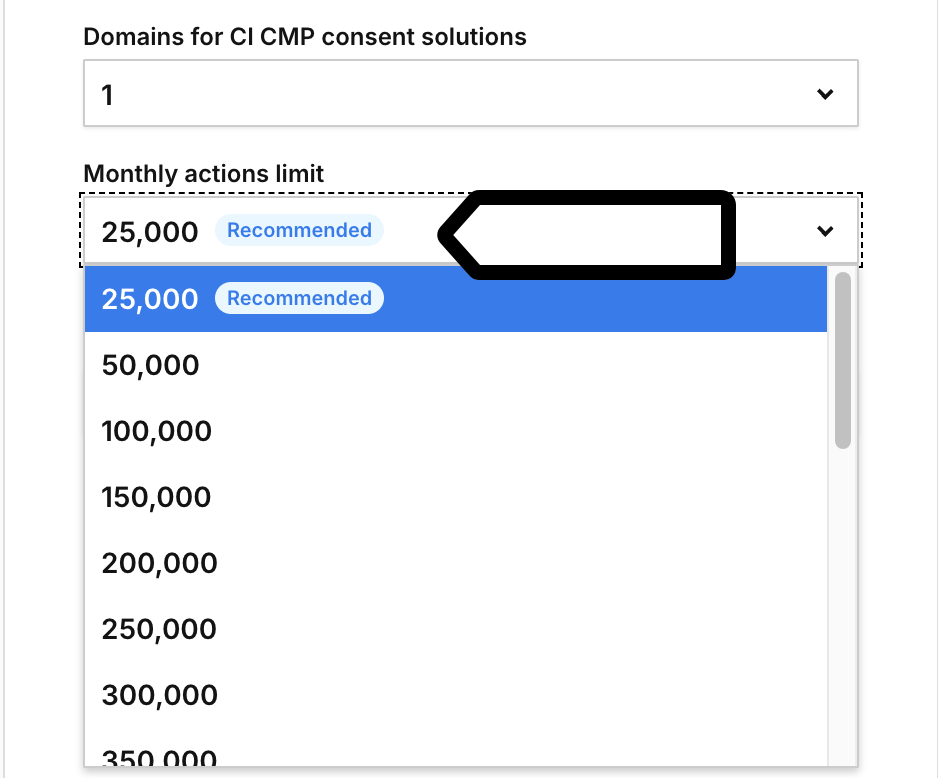
Note:
- Actions are things visitors or app users do that are tracked, as well as background tasks the platform performs. Read more
- The system recommends the number of actions based on your current month and last month’s use.
6. Click Confirm. This will open a Paddle’s window, our payment provider.
7. If you have a discount code, enter it in Add discount.
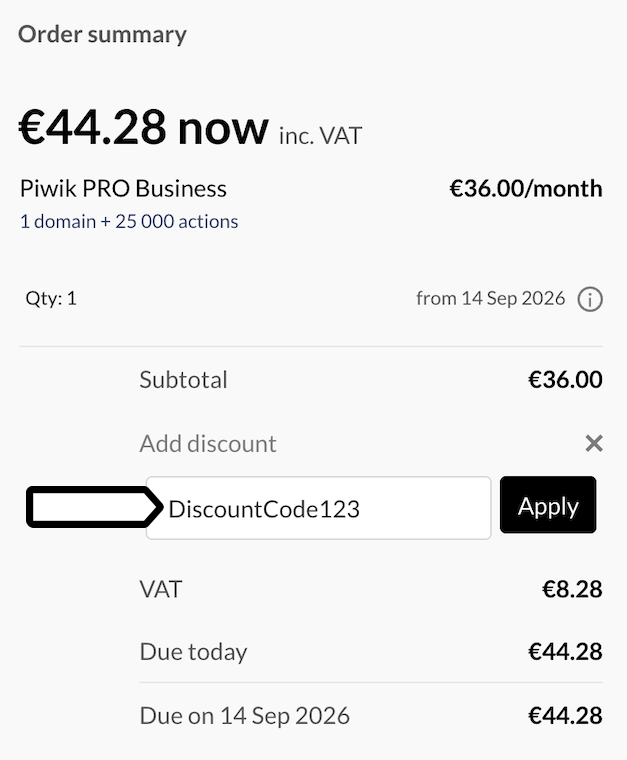
8. Click Apply.
9. Go to Your details > Payment.
10. Enter your email address.
11. Choose your country name.
12. Click Continue.
13. If your company has a VAT number, click Add VAT number.
14. Enter your VAT number.
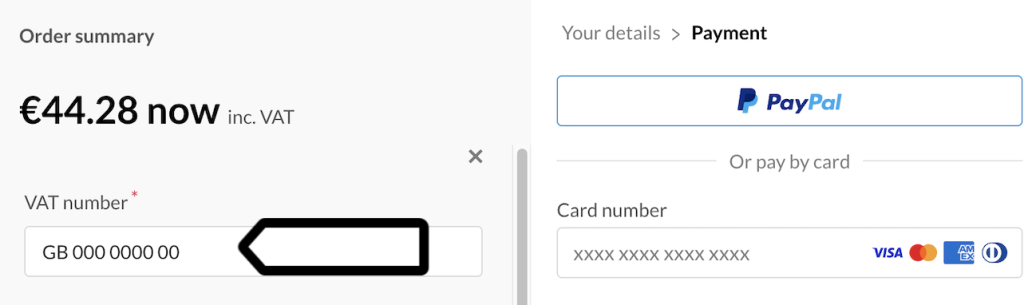
Note: You can check the VAT ID format in the Paddle documentation.
15. Enter your company name, street, town or city, state or county, and country.
16. Click Add VAT number to continue to the next step.
17. You can choose PayPal or continue with the card form.
18. If you pay by card, enter your card number, name on card, expiration date, and security code.
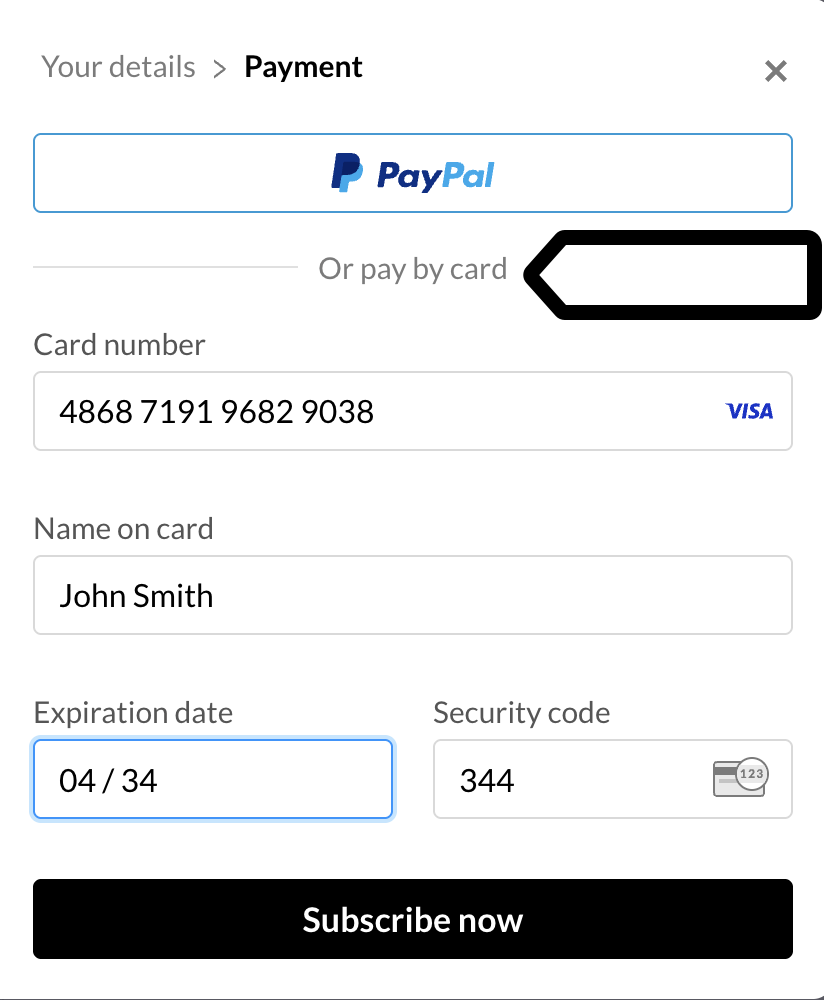
Note: If you want to use Apple Pay, use the Safari browser.
19. Click Subscribe now.
20. Confirm your purchase.
Note:
- If your card uses 3D Secure, authorize the transaction to complete your purchase.
- This confirmation is required only after the trial. Upgrades don’t require it.
21. After payment is completed, you’ll see a success message. Your subscription will be activated, and you’ll receive a confirmation email and invoice. You’ll also be redirected to the app’s pricing page.
22. All set. Now you can explore the Piwik PRO platform.