
When you export data from Piwik PRO as a CSV file, the file contains values exactly as they were collected. These values can include page titles, event names, goal names, and custom dimensions.
Some spreadsheet programs may interpret values starting with =, +, -, or @ as formulas. This can cause unexpected results or errors.
Note: In some cases, formulas can also connect to external websites and potentially expose data from your spreadsheet.
Piwik PRO doesn’t modify these values because no single change can reliably prevent this behavior across all spreadsheet programs.
In this article, we’ll show you how to import a CSV file into a spreadsheet while keeping the original values.
When this applies
These recommendations apply to Piwik PRO CSV exports, including:
Open a CSV file safely
Don’t double-click the CSV file to open it in a spreadsheet. Import it instead and set its columns to text. This prevents the spreadsheet from interpreting text as formulas.
You can also use a data tool, such as a database, BI tool or script, which reads the values without running them.
Open a CSV file in Excel
To open a CSV file in Excel, follow these steps:
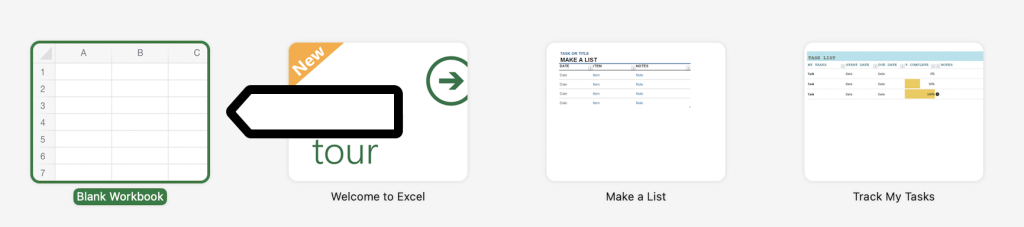
1. Open a blank workbook.
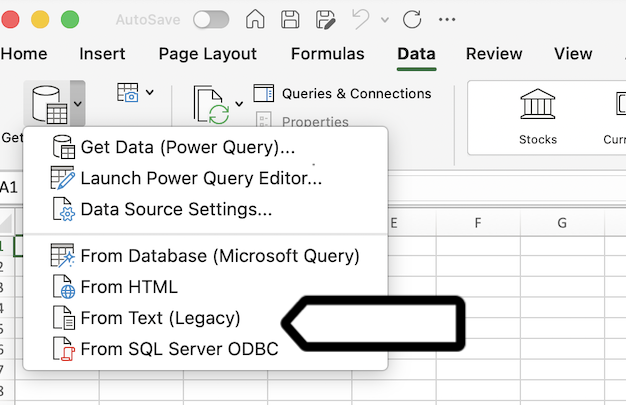
2. Click Get Data on Data.
3. Then choose From Text (Legacy).
4. Select your CSV file.
5. Select Get Data.
6. In step 1 of the wizard, select Delimited, then click Next.
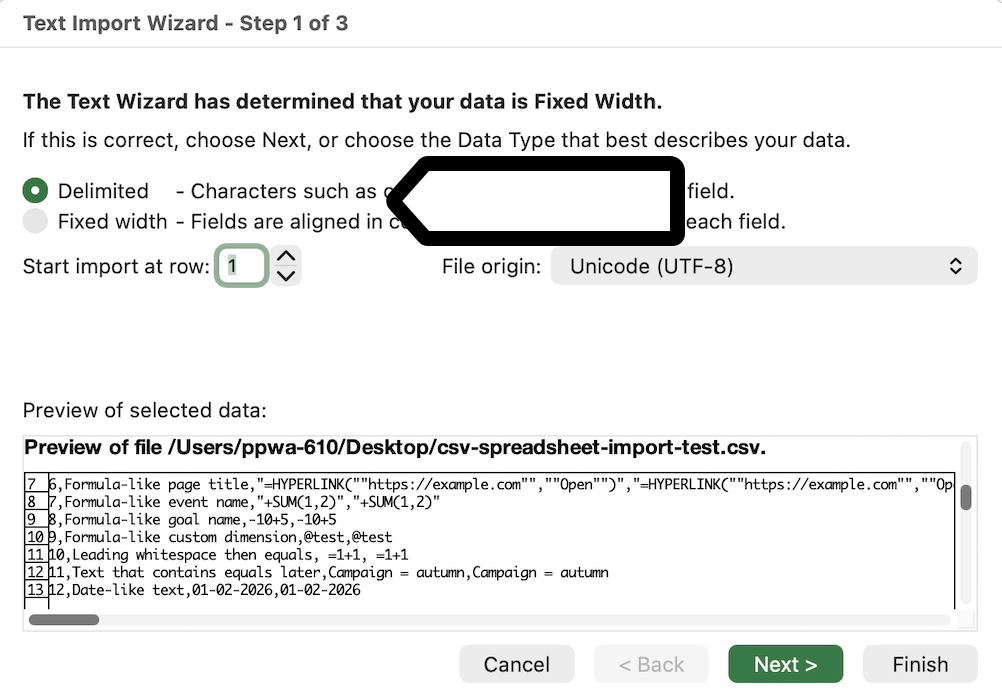
7. Select Next.
8. In step 2, select Comma as the delimiter.
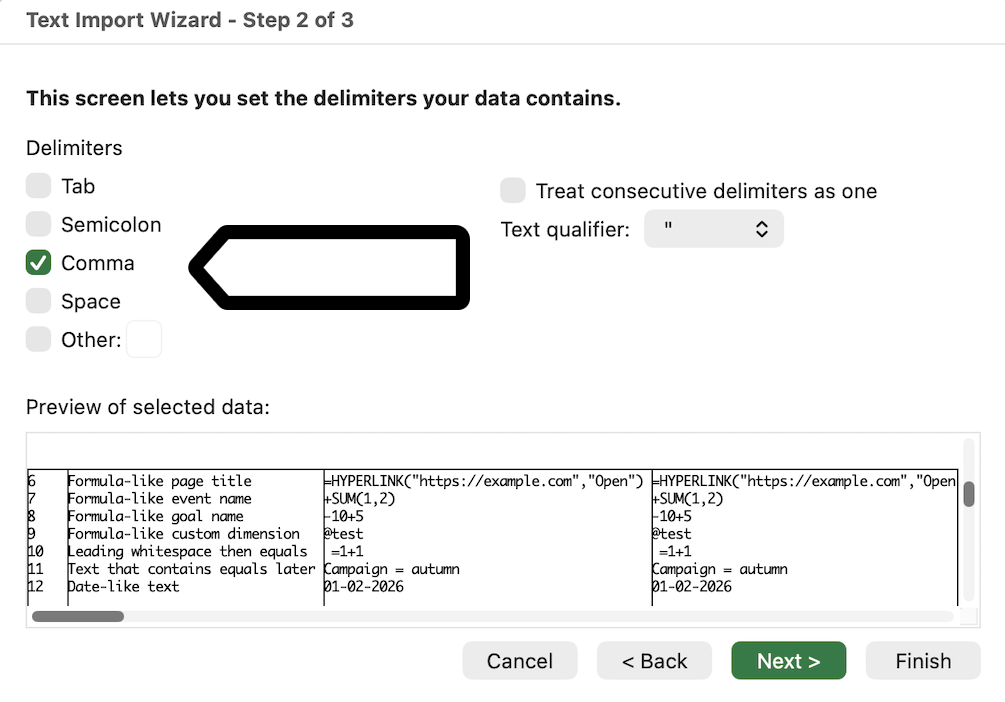
9. Select Next.
10. In step 3, under Column data format, choose Text.
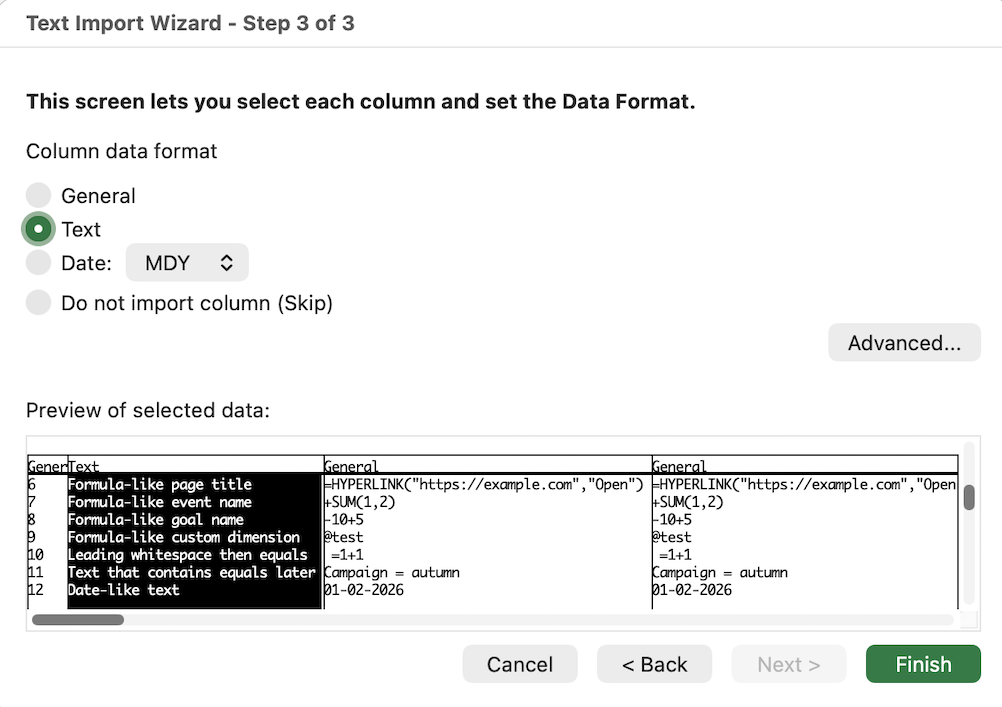
11. Click the first column in the preview, then hold Shift and click the last column to select all columns.
12. Click Finish.
13. Choose where you want to place the data.
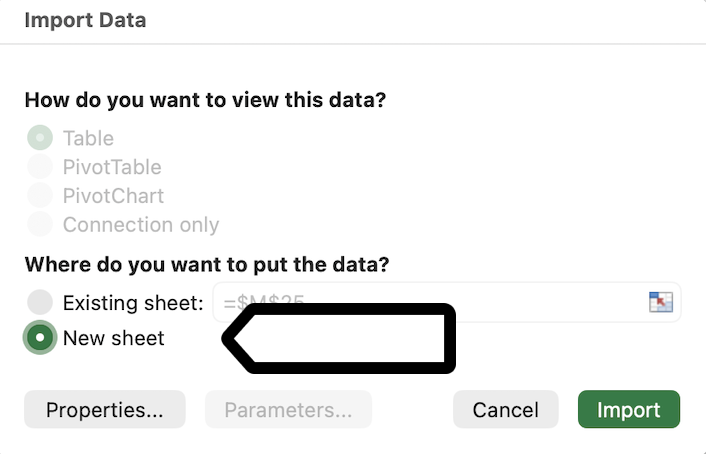
14. Select Import.
Note: If Excel asks you to allow external links, data connections, or other applications to run, select No or Cancel. Piwik PRO exports don’t require these actions.
Open a CSV file in Google Sheets
To open a CSV file in Google Sheets, follow these steps:
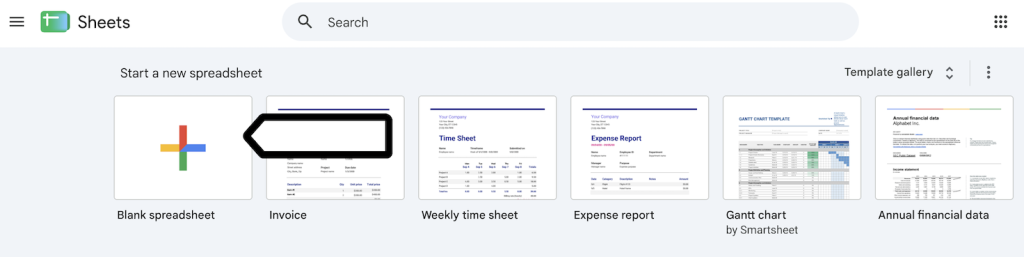
1. Select Blank spreadsheet.
2. Go to File.
3. Select Import.

Note: If Google Sheets asks you to allow external links, data connections, or other applications to run, select No or Cancel. Piwik PRO exports don’t require these actions.
4. Select Upload and add your file.
5. Under Import location, select Create new spreadsheet or Insert new sheet(s).
6. Clear the Convert text to numbers, dates, and formulas checkbox.
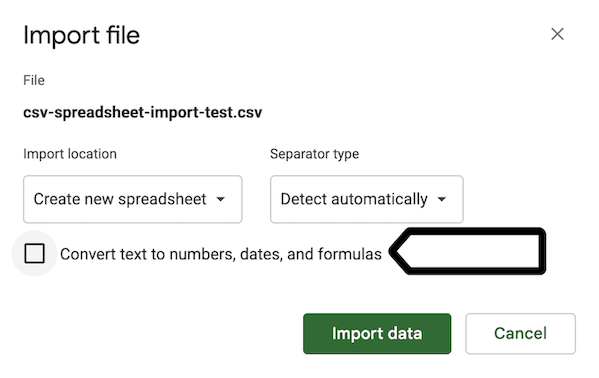
7. Click Import data.
Note: With this option cleared, numbers and dates are also imported as text. You can change the format of a column afterward.
8. Select Open now >>.
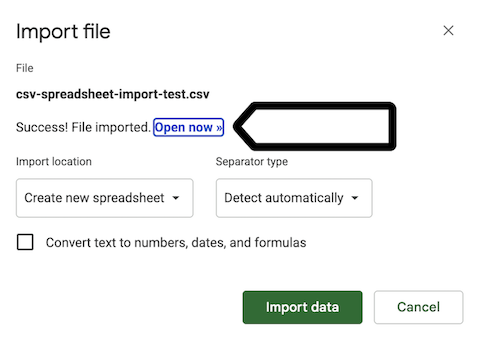
9. Done.
Open a CSV file in LibreOffice Calc
To open a CSV file in LibreOffice Calc, follow these steps:
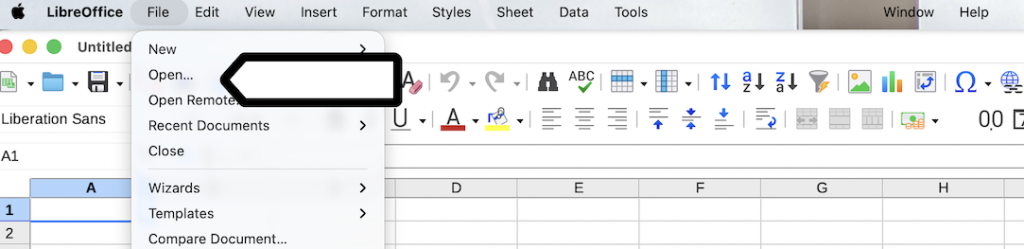
1. Go to File > Open and select your file.
2. In Text Import, make sure Evaluate formulas is cleared.
3. Under Separator Options, select Separated by and select only Comma.
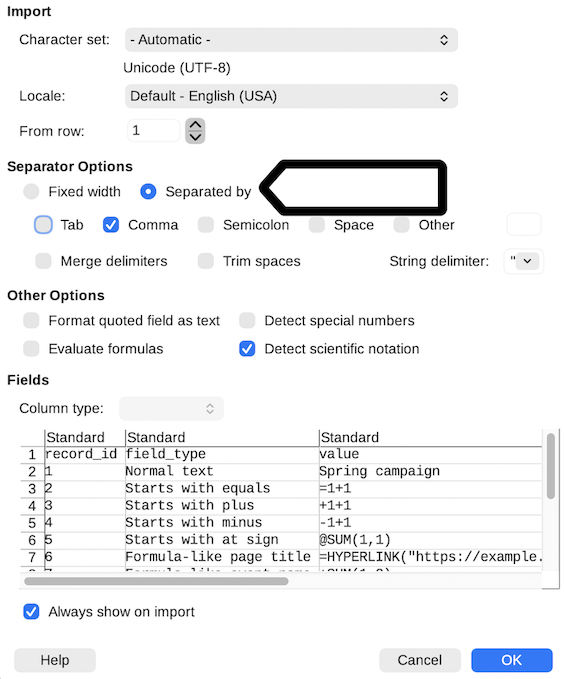
4. In the table preview, click Standard above the first column. Then hold Shift and click Standard above the last column to select all columns.
5. In Column type, select Text.
Note: The labels above the selected columns should change from Standard to Text.
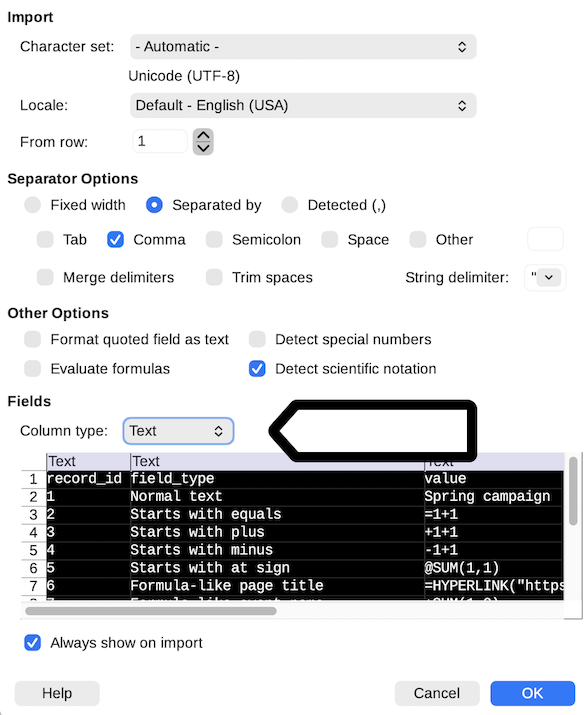
6. Click OK.
Note: If LibreOffice Calc asks you to allow external links, data connections, or other applications to run, select No or Cancel. Piwik PRO exports don’t require these actions.
7. Done.
Open a CSV file in Numbers
Numbers doesn’t provide an option to import CSV columns as text. When you open a CSV file, Numbers may interpret values that start with = as formulas, even when spaces precede them. It then displays the formula’s result instead of the original value.
Numbers may also automatically change other values it recognizes as numbers. For example, it may remove a + at the beginning of a number or leading zeros from values such as 00123.
If you need to preserve values exactly as exported, don’t open the CSV file directly in Numbers. Instead, use a tool that lets you import values as text.
Why Piwik PRO doesn’t modify exported values
We keep the original values exactly as collected, without adding prefixes or changing characters.
Adding a prefix could cause problems when you use the data in other tools. For example, it could affect calculations, matching data across reports, or analyzing historical data.
Also, no single prefix works safely in every spreadsheet program. That’s why we recommend importing CSV files using the steps described above.
Note: If you save a CSV file in a spreadsheet program and open it again, some values may be interpreted as formulas. Keep the original export to preserve the unchanged values.
Tip: If you want to use the data in other tools, export it as JSON or JSON (KV), or use the API. These formats don’t open automatically in spreadsheet programs.