
This article isn’t legal advice. You’re responsible for assessing the risks of using Google Ads and whether that use could constitute a disclosure of protected health information (PHI).
Many analytics platforms, by design, can’t send conversion data to Google Ads in a way that meets HIPAA requirements.
Under limited conditions, you may be able to send conversion data to Google Ads without sharing protected health information (PHI).
Before you send the data, make sure it doesn’t reveal or suggest anything about a person’s health, including their condition, treatment, diagnosis, or appointment.
This applies to all data sent to Google Ads, including:
- GCLID
- Timestamp
- Conversion name
- Conversion value
- URL context
- Campaign context
- Landing page context
In Piwik PRO, you can send your site’s conversion data to third-party tools such as Google Ads. Piwik PRO supports organizations that need HIPAA-compliant analytics and offers a Business Associate Agreement (BAA) for organizations that handle protected health information (PHI).
Before you start
Here are a few important things to know before you start:
- Treat Google Ads as a non-HIPAA third party. Never send protected health information (PHI) to Google Ads.
Piwik PRO offers a business associate agreement (BAA) to help organizations handle protected health information (PHI). PHI can only be shared with external platforms that have signed a BAA with the healthcare provider. - In Data Activation, you can configure the attribution data sent to third-party vendors, such as Google Ads, without sending protected health information (PHI).
- You can’t send protected health information (PHI) in web conversion data shared with third-party advertising vendors.
- A Google Click ID (GCLID) is a unique tracking parameter added to a URL when someone clicks a Google ad. Google Ads uses GCLID to match a conversion to an ad interaction, and potentially, to a user.
- The GCLID may be treated as personally identifiable information (PII), but it can become PHI when combined with a health-related context. This includes context from:
- Campaigns
- Ads
- Landing pages
- Conversion names
- Event data
- Make sure the conversion data you send to Google Ads doesn’t include protected health information (PHI). The GCLID may be treated as personally identifiable information (PII). It can become PHI if it is linked to health-related information.
- You can send conversion data to Google Ads only when the click GCLID isn’t connected to health information. Risk increases when you combine the ID with details that suggest a person’s medical interests or condition.
For example, don’t use ads that mention specific health conditions, treatments, or other sensitive health details. Keep ad copy, URLs, and landing pages general. Also, avoid health-specific targeting.
The key is to keep marketing data separate from health-related information. - The GCLID you send to Google Ads may be treated as personally identifiable information (PII), but it doesn’t identify a person on its own. Google may still be able to link it to other data, for example, if someone was signed in to a Google account when they clicked the ad.
- You need to have the following permissions in Piwik PRO: owner or manage.
- You need to have Piwik PRO integrated with Google Ads. Read more
- Make sure you don’t use Google Ads tags, Google Analytics tags, remarketing tags, or other Google tracking scripts on pages where PHI may be present.
Send conversion data to Google Ads in a HIPAA-compliant way
To send conversion data to Google Ads, follow these steps:
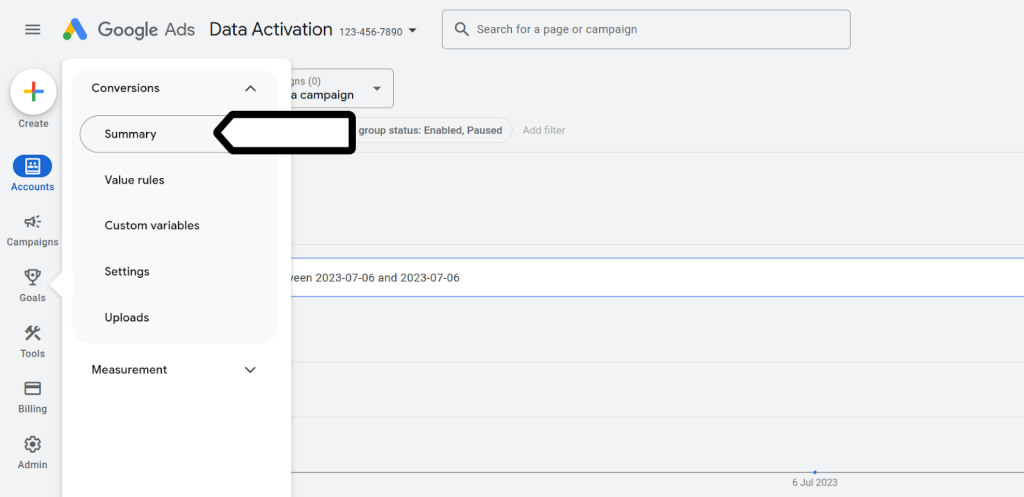
1. Create a conversion action in Google Ads. In your Google Ads account, click the Goals icon.
Important
Sending conversions to Google Ads through Piwik PRO Data Activation doesn’t, by itself, send protected health information (PHI). However, settings in Google Ads can create compliance risks.
Don’t add health-related information to the conversion setup in Google Ads. For example, don’t change the default name from offline (Upload) to a name such as diabetes_consultation.
A health-related conversion name could link Google Click ID (GCLID) with health information. That would make the setup vulnerable to sharing PHI.
Keep the default conversion name or use a neutral name that doesn’t reveal health information.
2. Click the Conversions drop-down in the section menu.
3. Click Summary.
4. On the list of conversion types, select only Conversions offline.
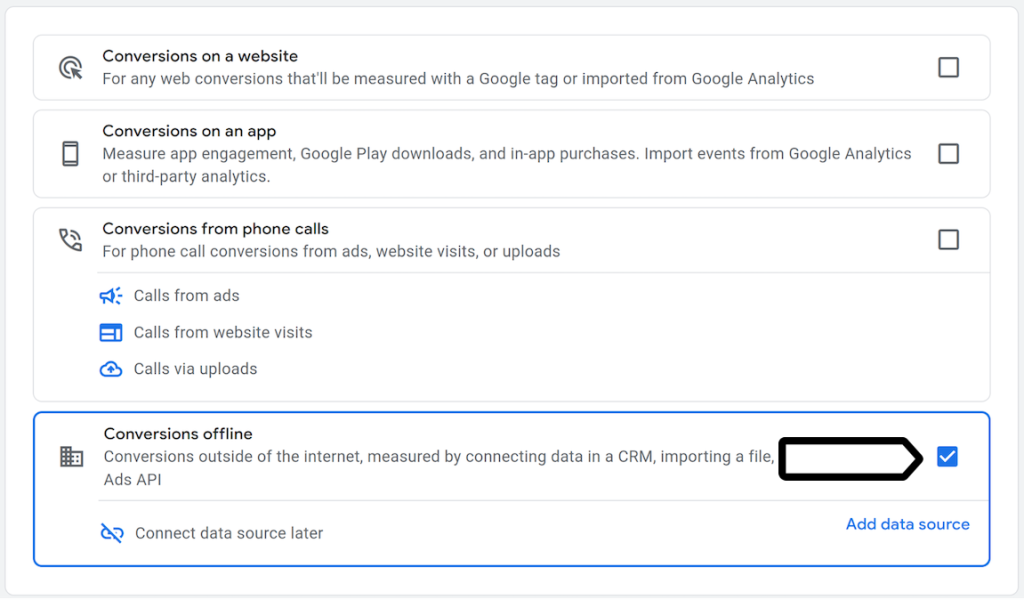
5. Click Save and continue.
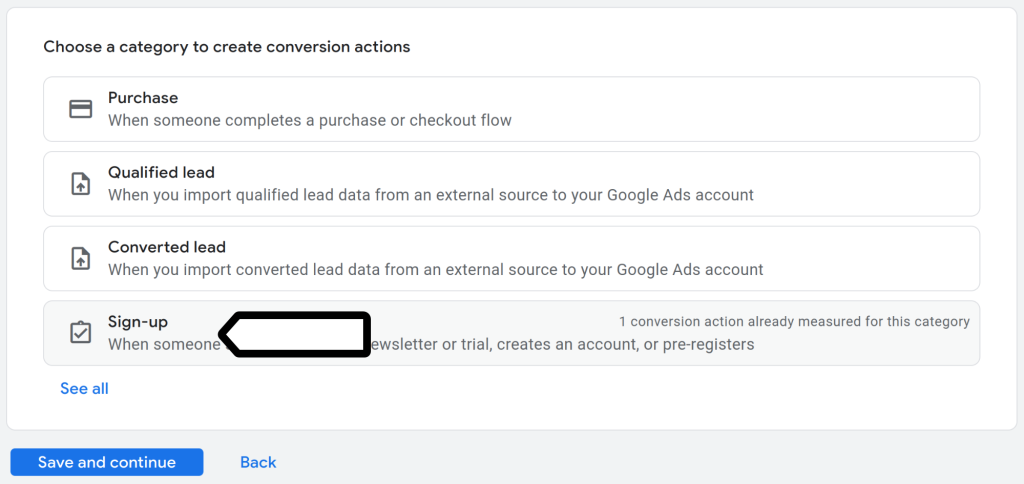
6. Choose what events you want to track. In our example, it’s Sign-up.
7. (Optional) To change the conversion action name and its monetary value, click Edit settings.
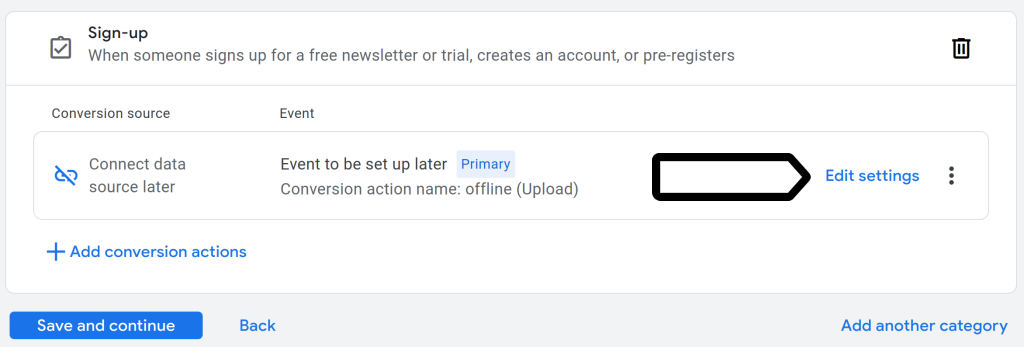
Note: Don’t include specific health conditions, treatments, or other sensitive health information in Conversion name. Use neutral wording in the setup to reduce the risk of linking the GCLID to health information.
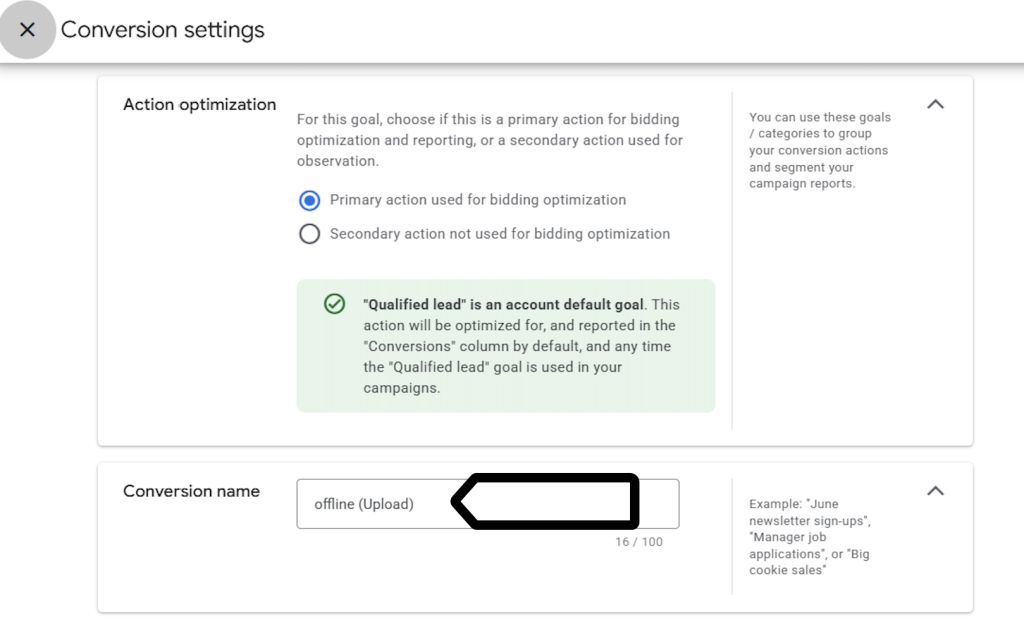
8. Click Save and continue.
9. Click Finish.
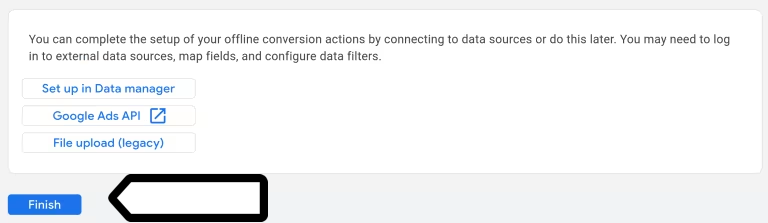
10. Your new conversion action has been created, and it’ll show up on a list.
Note: At first, Google Ads may show the conversion action as misconfigured or inactive. Don’t worry, conversion uploads will still work. You’ll also see the conversion action listed in Piwik PRO.
11. Log in to Piwik PRO.
12. Go to Menu> Data Activation.
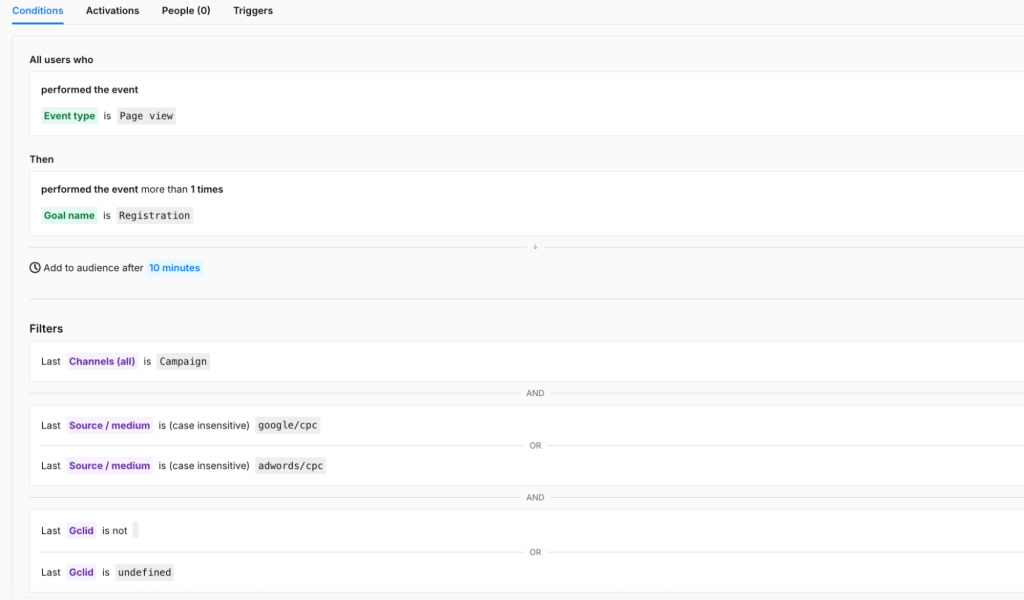
13. In Audiences, create a sequential audience called Recent event sign-ups.
Set conditions that match your use case. For example, you can add users to the audience when they meet these conditions:
Audience conditions
All users who…
- performed the event at least 1 times
- Event type is Page view
And then…
- performed the event at least 1 time within 1 hour
- Goal name is Registration
Add to audience after
- 10 minutes
Filters
Last channel is Campaign
AND
(
  Last source / medium is google / cpc
  OR
  Last source / medium is adwords / ppc
)
AND
(
  Last GCLID is not empty
  OR
  Last GCLID is not undefined
)
For step-by-step instructions, see Create a sequential audience.
Note: In our example, we’ve created a goal called Registration that is achieved when a user submits a contact form. You can create your own goal or use a different event to define the desired audience.
14. Now, you need to create a Google Ads activation. Go to Activations.
15. Click Add an activation.
16. Choose Google Ads from the list.
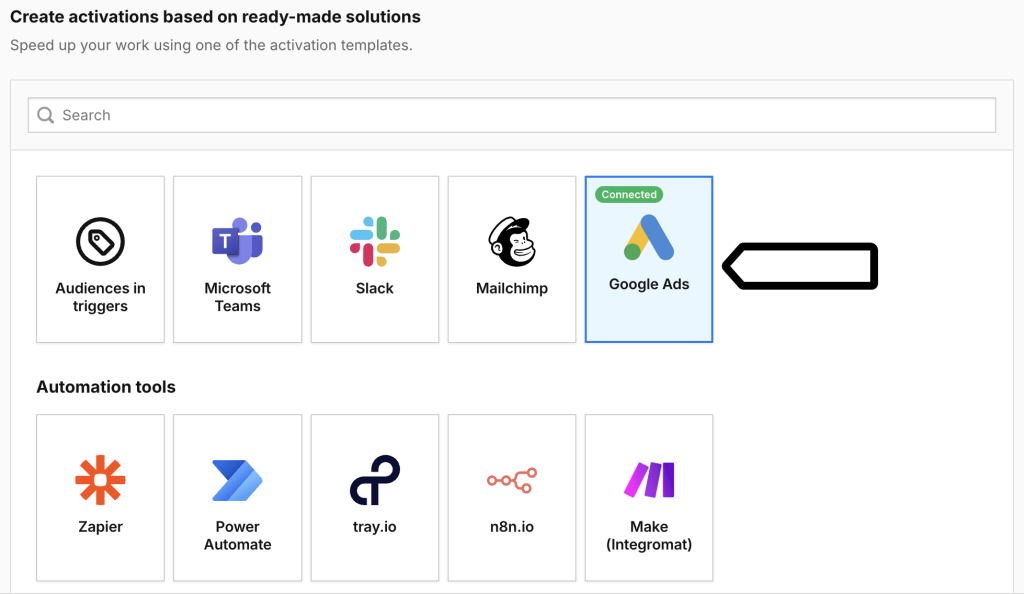
17. Click Next.
18. Name your activation. You can also add a description.
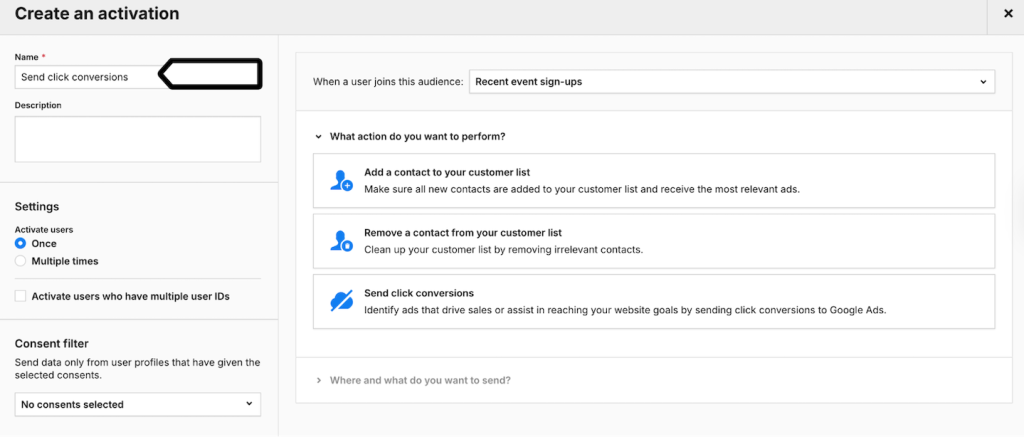
19. Select the audience you set up in step 14: Recent event sign-ups.
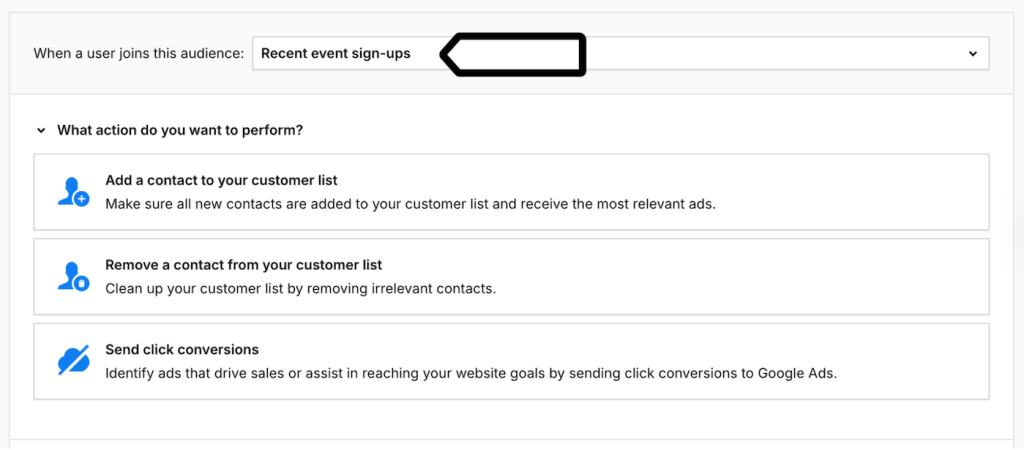
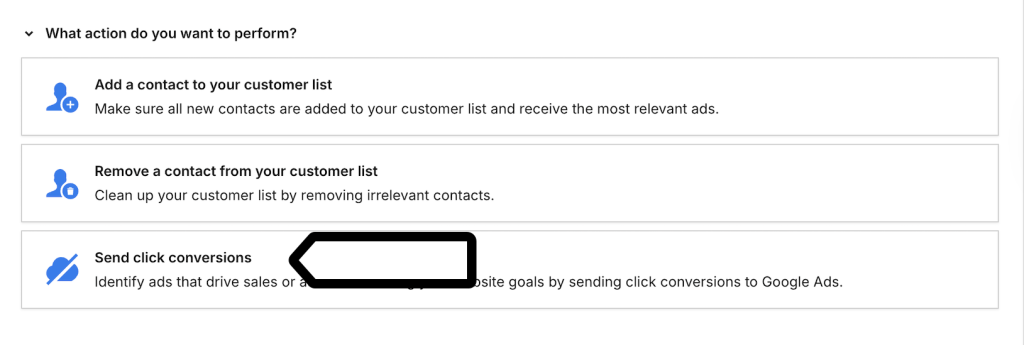
20. Choose the action you want to perform: Send click conversions.
21. Choose a Google Ads account where you want to send this data.
22. Select Conversion action, the type of customer activity you want to report.
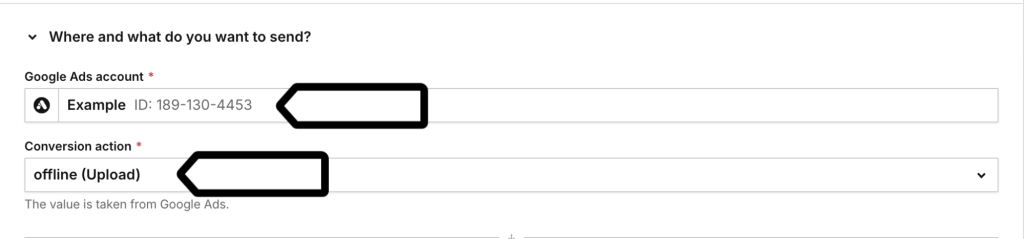
Note: You set up the conversion action in Google Ads.
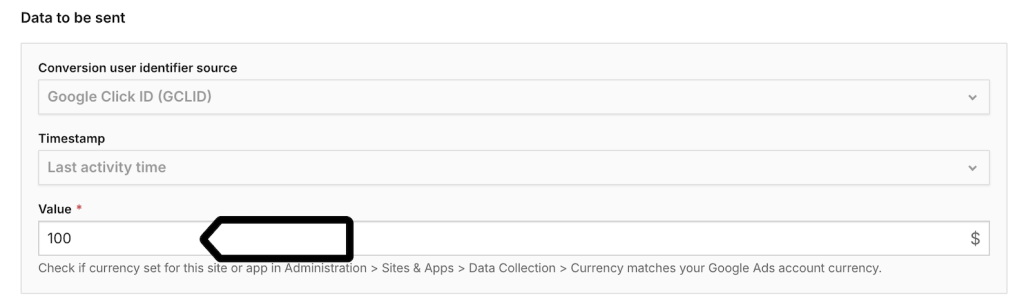
23. In Data to be sent, you set up the numerical value for those click conversions.
Note: With Piwik PRO Data Activation and the Google Ads activation template, Piwik PRO sends only the following data to Google Ads:
- The GCLID, which is personally identifiable information (PII)
- Timestamp, which isn’t healthcare information on its own
- Value, which isn’t healthcare information on its own
On its own, this data doesn’t include protected health information (PHI). However, it may be considered PHI when combined with a health-related context.
24. Click Save. Your activation is ready.
25. Done! Now, the chosen data from your Data Activation audience will be sent automatically to your Google Ads account.