
If you’re going to use Piwik PRO in your team, you need to add a user and assign them permissions for sites and apps. You can also create groups and assign permissions to them.
In this article, we’ll show you how to check and change a user’s permissions for sites and apps.
Before you start
Here are some important things to keep in mind before you start:
- Owners have full access to the account. When Owner access is on, separate permission settings aren’t shown.
- If a user has a direct permission and a higher permission through a group, the higher permission applies.
- Permissions for meta sites and meta apps are set separately. Access through a meta site or meta app can also affect what a user can access on an individual site or app. Read more
Grant site or app permissions to users or groups
To assign or change permissions to users or groups, follow these steps:
1. Go to Menu > Administration.
2. Navigate to Sites & apps.
3. Select the site or app to which you want to grant permissions.
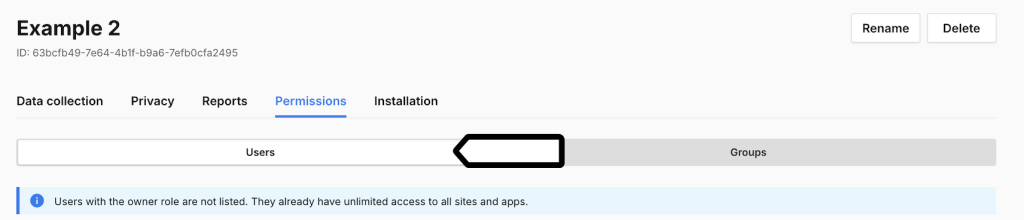
4. Click Permissions and pick Users or Groups.
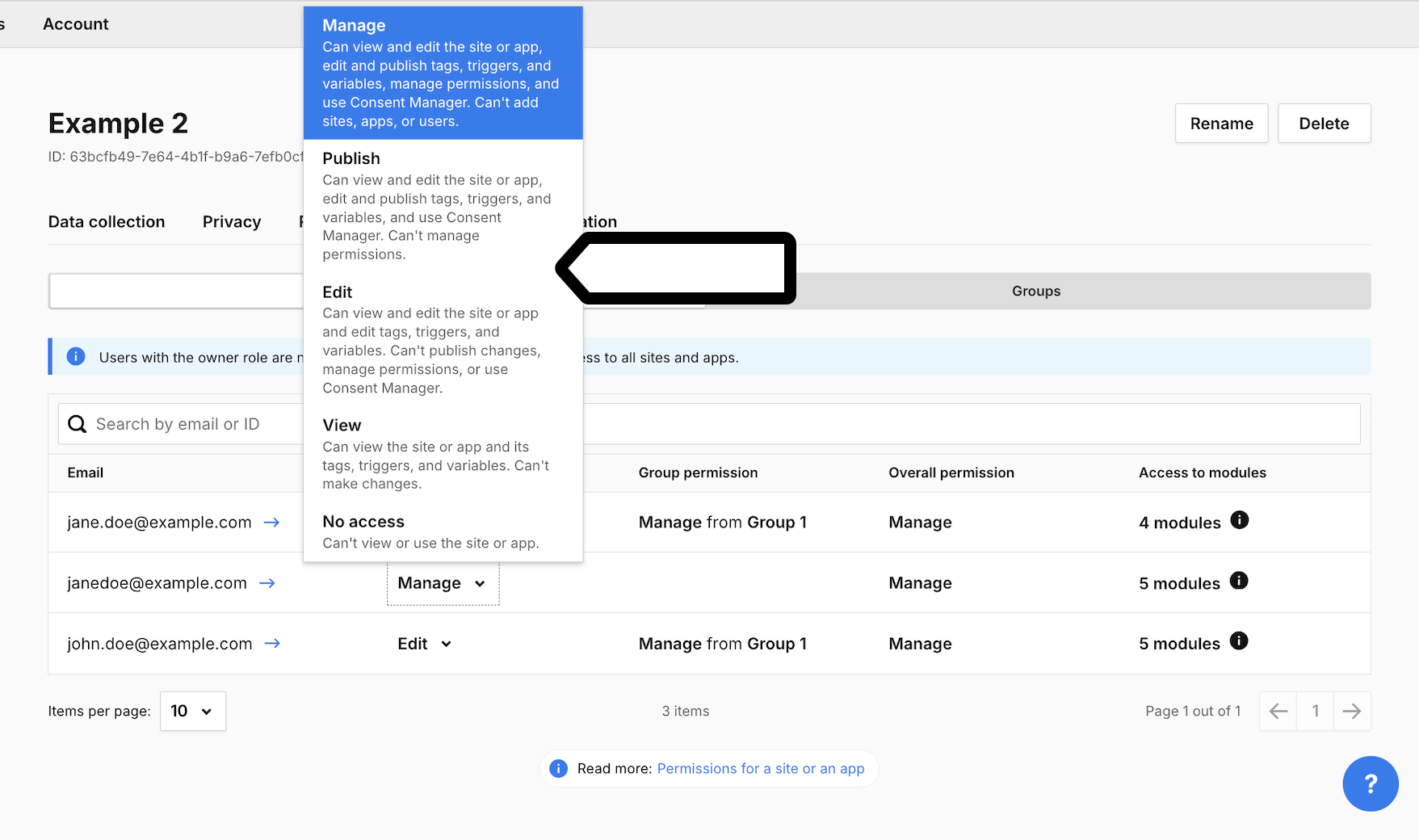
5. Check the user’s permissions in these columns:
- User permission
- Group permission
- Overall permission
- Access to modules
6. Select the access level for the user or group.
Note:
- Users with the role of owner are not listed. They have unlimited access to all sites or apps.
- You can grant users owner access in Menu > Administration > Users > Profile > Owner access.
7. Done.
Note: Changing User permission may not lower Overall permission if the user inherits a higher permission from a group. To lower it, change the group’s permissions or remove the user from that group. Access through a meta site or meta app may also need to be checked.
Site or app permission levels
Each site or app has five permission levels:
- Manage: The user can see and edit the site or app, publish changes in Tag Manager, manage permissions and use Piwik PRO Consent Manager. They can’t add sites, apps or users.
- Publish: The user can see and edit the site or app, publish changes in Tag Manager and use Piwik PRO Consent Manager. They can’t manage permissions.
- Edit: The user can edit the site or app and make changes in Tag Manager, but can’t publish them, manage permissions or use Piwik PRO Consent Manager.
- View: The user can view the site or app and its tags, triggers and variables.
- No access: The user can’t access the site or app through this permission.
For a detailed comparison of what each level allows in Administration, Analytics, Tag Manager, Consent Manager, and Data Activation, see Compare permission levels.